
IPTV Router Settings: How to Build a More Stable Home Streaming Network
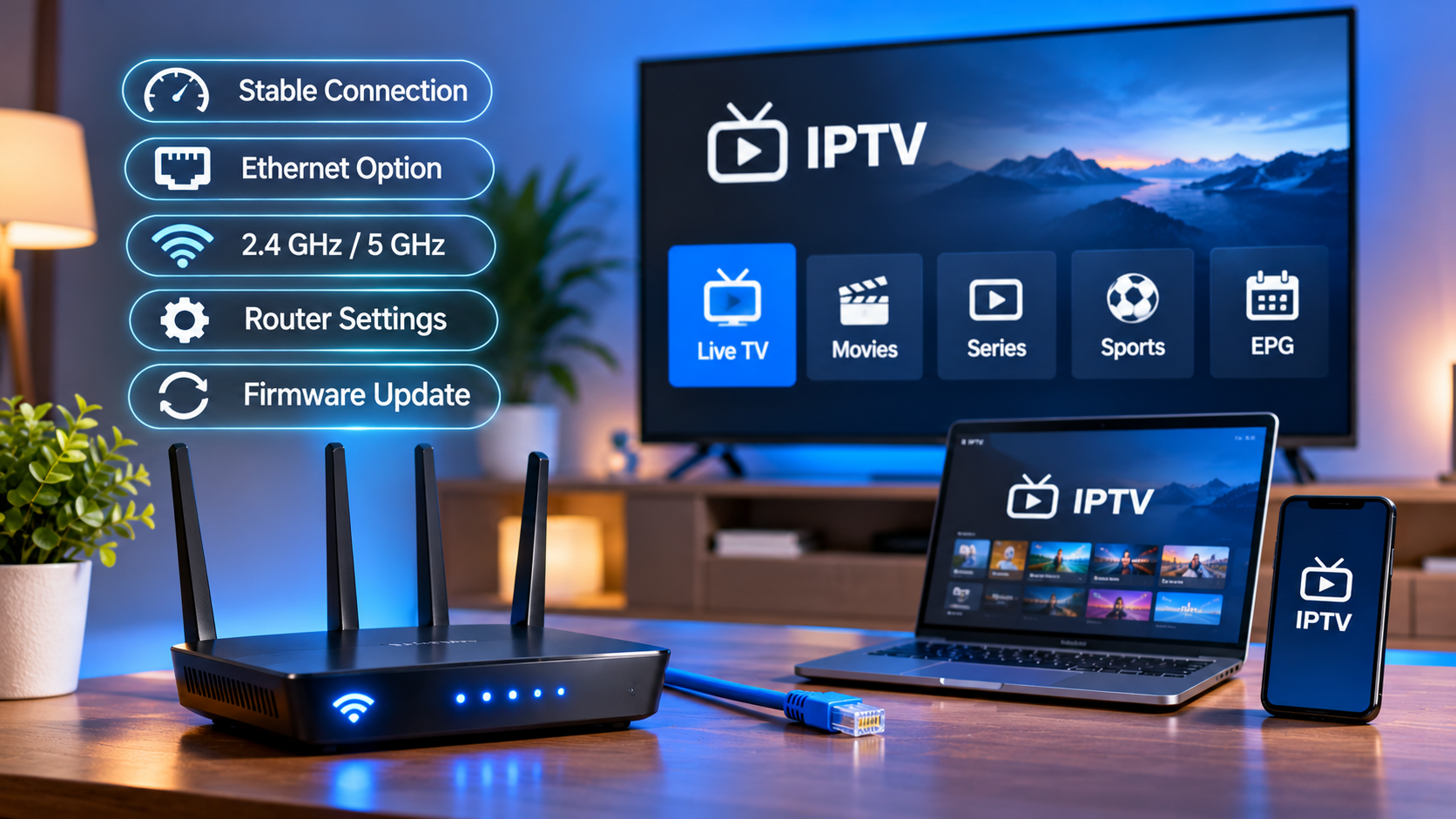
A reliable IPTV experience depends on more than the television or streaming application. The home router plays an important role because every live channel, movie, series, and program guide update travels through the local network before reaching the viewing device.
When buffering, slow channel changes, or random disconnections occur, the IPTV service is not always the cause. Weak Wi-Fi coverage, network congestion, poor router placement, or outdated equipment can also affect streaming.
Understanding a few basic router and network principles can help users create a more stable IPTV setup.
Why the Router Matters for IPTV
The router connects household devices to the internet and manages traffic between them.
A modern home may have dozens of connected devices, including:
-
Smart TVs
-
Smartphones
-
Tablets
-
Computers
-
Gaming consoles
-
Security cameras
-
Streaming boxes
-
Smart home devices
When several devices are active at the same time, they compete for available network resources.
IPTV requires a continuous video stream, so sudden network interruptions may be more noticeable than during ordinary web browsing.
Start With Router Placement
Router position can have a significant effect on Wi-Fi performance.
A router hidden inside a cabinet or positioned at one end of the home may struggle to provide consistent coverage to a television located several rooms away.
For better wireless coverage, try to position the router:
-
In a central area
-
Away from thick walls
-
Above floor level
-
Away from large metal objects
-
Outside enclosed cabinets
-
Away from unnecessary electronic interference
A small change in placement can sometimes improve streaming without requiring new equipment.
Ethernet Is Worth Considering
For a television or streaming device that stays in one location, Ethernet can provide a simple way to improve connection stability.
A wired connection avoids many of the problems associated with wireless interference.
Ethernet may be particularly useful when:
-
The router is close to the TV
-
IPTV is watched for long periods
-
Several people use Wi-Fi simultaneously
-
High-resolution video is common
-
Wireless performance changes throughout the day
Many Smart TVs and streaming boxes include Ethernet ports, while some devices may require an adapter.
Understand 2.4 GHz and 5 GHz Wi-Fi
Modern routers commonly provide more than one wireless frequency band.
2.4 GHz
The 2.4 GHz band generally provides longer range and can travel through walls more effectively.
However, it is often more crowded because many household and neighboring devices use the same frequency.
5 GHz
The 5 GHz band can offer higher speeds and less interference at shorter distances.
It can be a good option when the IPTV device is reasonably close to the router.
Neither band is automatically better in every situation. Users should test which connection provides the most consistent performance in the room where IPTV is watched.
Avoid Network Congestion
One of the most common causes of streaming problems is simultaneous heavy network use.
IPTV may compete with:
-
Game downloads
-
Cloud backups
-
Video calls
-
Other streaming services
-
Large file transfers
-
Software updates
If buffering occurs mainly during busy household hours, network congestion may be the reason.
Users can test this by temporarily pausing large downloads and checking whether IPTV performance improves.
Restart the Router When Performance Changes
Routers can occasionally develop temporary performance issues.
If the entire home network suddenly becomes slower or unstable, restarting the router may help.
A basic troubleshooting sequence is:
-
Close the IPTV application.
-
Restart the router.
-
Allow the internet connection to reconnect fully.
-
Restart the streaming device.
-
Open the IPTV player again.
If only one device has problems while everything else works normally, the issue may be related to that device instead.
Keep Router Firmware Updated
Router manufacturers may release firmware updates that improve:
-
Stability
-
Security
-
Device compatibility
-
Network management
-
Wireless performance
Users should check the router manufacturer's official settings interface or documentation for available updates.
Firmware should only be downloaded from trusted sources.
Keeping networking equipment updated is part of maintaining a reliable streaming environment.
Quality of Service Can Help Busy Networks
Some routers include a feature called Quality of Service, commonly shortened to QoS.
QoS can help prioritize certain types of traffic or selected devices when the network becomes busy.
For example, a household may choose to give the main television or streaming device higher priority than background downloads.
The exact setup varies between router manufacturers.
QoS cannot create additional internet bandwidth, but it may help distribute available capacity more effectively.
Do Not Change Advanced Settings Without a Reason
Routers often provide advanced settings such as:
-
DNS options
-
Channel selection
-
Firewall controls
-
Port settings
-
DHCP configuration
-
Traffic prioritization
Changing these settings without understanding their purpose can create new network problems.
For ordinary IPTV troubleshooting, users should start with simpler steps such as connection testing, router placement, Ethernet, Wi-Fi band selection, and device updates.
Advanced settings should only be changed when there is a clear reason.
Wi-Fi Channels Can Become Crowded
In apartment buildings and densely populated areas, many nearby routers may use the same wireless channels.
This can create interference.
Some modern routers automatically select an appropriate channel. Others allow manual selection.
If Wi-Fi performance is inconsistent despite a strong signal, channel congestion may be worth investigating.
Users should consult their router documentation before manually changing wireless settings.
Mesh Wi-Fi Can Help Larger Homes
A single router may struggle to cover a large house or multiple floors.
Mesh Wi-Fi systems use several access points to provide broader wireless coverage.
A mesh setup may be useful when IPTV is watched in rooms far from the main router.
However, adding extra access points is not automatically a solution. Placement still matters, and the underlying internet connection must also be stable.
Test IPTV Near the Router
A simple troubleshooting method is to temporarily use the IPTV device closer to the router.
If streaming becomes noticeably better, the problem may be related to Wi-Fi coverage rather than the IPTV player or service.
This test can help users decide whether they need:
-
Better router placement
-
Ethernet
-
Mesh Wi-Fi
-
A different wireless band
-
Updated networking equipment
Testing before purchasing hardware can save unnecessary expense.
Router Age Can Affect Performance
Older routers may struggle when many modern devices are connected simultaneously.
A router does not need to be replaced simply because it is old, but an upgrade may be worth considering when users regularly experience:
-
Weak coverage
-
Frequent restarts
-
Poor multi-device performance
-
Limited modern Wi-Fi support
-
Unstable connections
Users should first confirm that the problem really comes from the router rather than the internet provider or streaming device.
Check the IPTV Device Too
The router is only one part of the setup.
If every other device works normally, users should also inspect the IPTV device.
Possible issues include:
-
Outdated software
-
Limited storage
-
Weak Wi-Fi hardware
-
Background applications
-
App compatibility problems
Testing the same connection on another compatible device can help identify whether the issue is network-related or device-specific.
Choosing an IPTV Setup for Nordic Viewing
People in Sweden and other Nordic countries may use IPTV across Smart TVs, Android TV devices, Fire TV, Apple TV, computers, and mobile devices.
Before choosing a service, it is useful to consider both content preferences and technical compatibility.
Users researching Nordic-focused options can include VIKING IPTV in their comparison while reviewing available setup information, device support, subscription options, and their own home network requirements.
A strong network foundation can improve the experience regardless of which compatible IPTV player is used.
Basic Troubleshooting Checklist
When IPTV buffering begins, users can check the following in order:
-
Test another channel.
-
Check whether other devices also have internet problems.
-
Restart the IPTV application.
-
Restart the streaming device.
-
Restart the router.
-
Test Ethernet if available.
-
Compare 2.4 GHz and 5 GHz Wi-Fi.
-
Pause large downloads.
-
Check for software updates.
-
Test the device closer to the router.
Following a structured process makes it easier to identify the actual problem.
Final Thoughts
A stable IPTV experience depends on the complete network environment, not just internet speed.
Router placement, Wi-Fi coverage, Ethernet connections, network congestion, firmware updates, and device performance can all influence streaming quality.
Users do not need to change every router setting. In many cases, simple improvements such as moving the router, using Ethernet, reducing background traffic, or choosing the better Wi-Fi band can make a noticeable difference.
Building a stable home network first gives IPTV applications and streaming devices a better foundation for reliable everyday viewing.

 English
 Arabic
 French
 Spanish
 Deutsch
 Turkish
 Dutch
 Italiano
 Russian
 Romaian
 Portuguese (Brazil)
 Greek