
IPTV on iPhone and iPad: Setup, Apps, and Streaming Tips
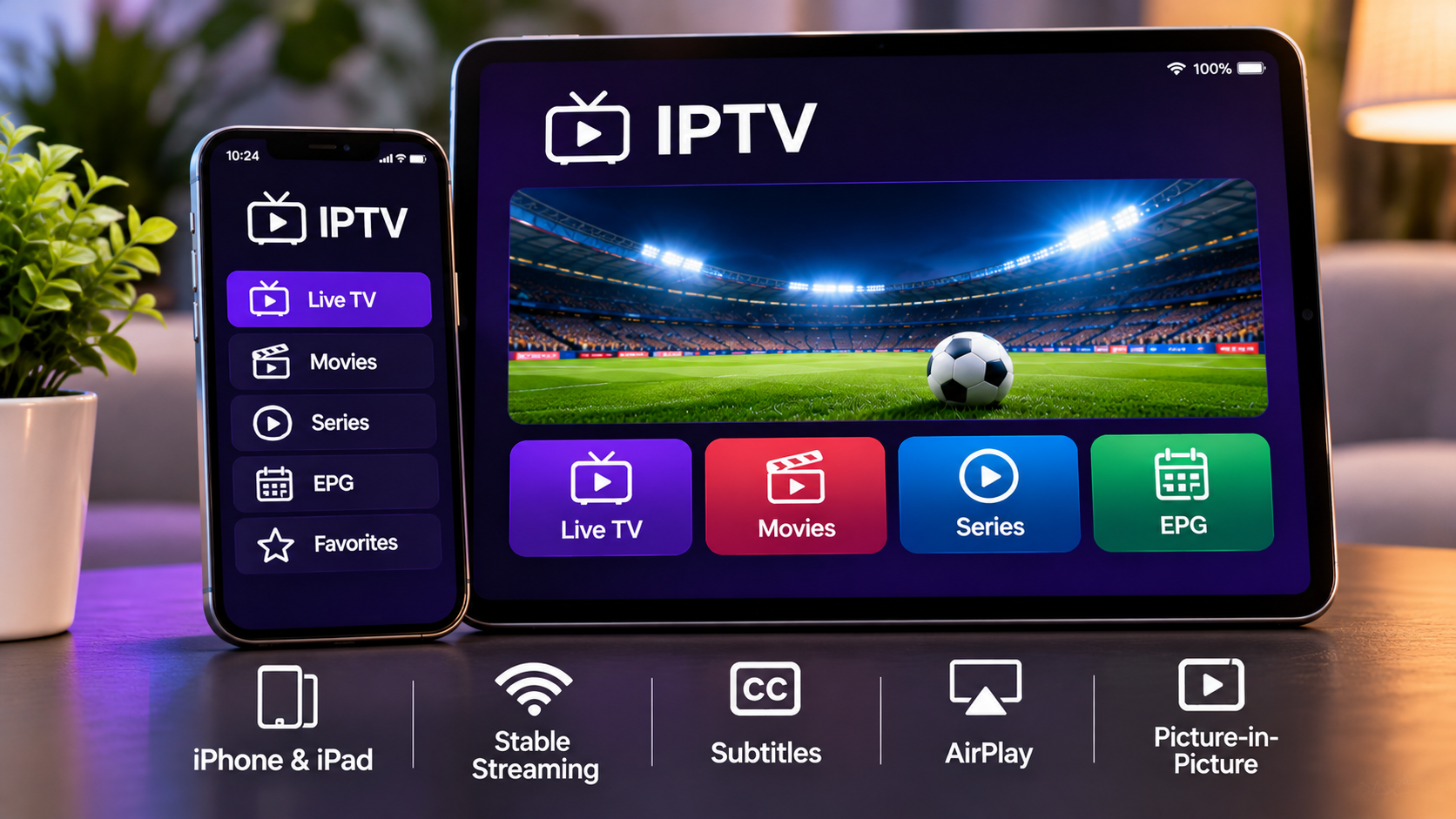
iPhones and iPads offer a convenient way to watch internet-based television without being tied to a living-room screen. Their portability, strong displays, Wi-Fi and mobile connectivity, and broad app support make them practical devices for IPTV at home or while traveling.
However, a good IPTV experience on iOS or iPadOS depends on more than installing an application. Users need a compatible IPTV player, correct login information, a stable internet connection, sufficient data, and suitable playback settings.
This guide explains what to consider when setting up IPTV on an iPhone or iPad and how to solve common streaming problems.
How IPTV Works on iPhone and iPad
IPTV delivers television and video through an internet connection.
On an iPhone or iPad, users normally install a compatible IPTV player and enter access information supplied by their IPTV provider.
Depending on the service and application, this may include:
-
M3U playlist URL
-
Username and password
-
Server URL
-
Portal information
-
Other supported account details
After the account is configured, the application may organize available content into sections such as live television, movies, series, favorites, and program guides.
Choose a Compatible IPTV Player
The IPTV application plays an important role in the overall experience.
Different apps can vary considerably in interface design, playback support, EPG handling, subtitle options, and playlist management.
Useful features to look for include:
-
Live TV categories
-
Movie and series sections
-
Electronic Program Guide
-
Favorites
-
Search
-
Subtitle controls
-
Alternative audio tracks
-
Picture-in-picture support
-
Multiple playlists
-
Catch-up compatibility
The best player is usually the one that supports the account format while remaining simple to navigate on a touchscreen.
Understand Your IPTV Login Method
Before downloading several applications, identify the type of login information you have.
M3U Playlist
An M3U playlist is generally supplied as a URL.
Compatible IPTV players can import the playlist and organize available streams.
Typing long URLs manually can lead to mistakes, so copying and pasting the address is usually easier when possible.
Username and Password Login
Some IPTV players allow users to enter:
-
Server address
-
Username
-
Password
This approach can provide a straightforward account setup.
Portal-Based Login
Certain IPTV platforms use portal information.
Not every iPhone or iPad IPTV application supports this method, so compatibility should be confirmed before choosing the player.
Use Wi-Fi for Regular Viewing
Wi-Fi is usually the most practical connection for long IPTV sessions.
Streaming video can consume substantial amounts of data, particularly at higher resolutions.
A strong home Wi-Fi network can provide:
-
Stable playback
-
Lower mobile data usage
-
Better support for HD content
-
More consistent long viewing sessions
If IPTV works correctly close to the router but buffers in another room, Wi-Fi coverage may be the cause.
IPTV Over Mobile Data
One of the main advantages of an iPhone or cellular iPad is the ability to stream when Wi-Fi is unavailable.
A strong 4G or 5G connection may provide good IPTV performance, but users should monitor their mobile data allowance.
Video streaming can consume data quickly.
Usage depends on factors such as:
-
Resolution
-
Bitrate
-
Stream duration
-
Compression
-
Player settings
If data usage matters, lowering video quality can reduce consumption.
Be Careful With International Roaming
Using IPTV through mobile data while traveling internationally can lead to additional charges depending on the mobile plan.
Before streaming abroad, check:
-
Roaming allowance
-
International data pricing
-
Fair-use limits
-
Local SIM options
-
eSIM options
Hotel or accommodation Wi-Fi may be more economical for longer viewing sessions.
Create a Favorites List
Touchscreen devices are convenient for browsing, but very large channel lists can still become difficult to navigate.
Favorites can help simplify the interface.
Users can save frequently watched:
-
Sports channels
-
News
-
Entertainment
-
Movie channels
-
International television
-
Children's programming
A smaller personalized list can reduce the amount of scrolling required.
Use Search Instead of Browsing Everything
A strong search function is especially valuable on mobile devices.
Rather than moving through many categories, users can search directly for a channel, movie, or series.
When evaluating IPTV players, test how quickly search results appear and whether the app searches across multiple sections.
An application with fast search can make a large IPTV library considerably easier to manage.
Electronic Program Guide on Mobile
An Electronic Program Guide, commonly known as an EPG, displays television schedules.
Depending on the service and IPTV player, it may show:
-
Current programs
-
Upcoming programs
-
Channel names
-
Start and end times
-
Program descriptions
An EPG can be particularly useful when checking upcoming sports events or television programs while away from the main TV.
The layout should also be easy to read on a smaller screen.
Picture-in-Picture Can Be Useful
Some compatible iOS and iPadOS applications support picture-in-picture playback.
This feature allows video to continue in a smaller window while the user accesses another application.
It can be useful when:
-
Checking messages
-
Browsing the web
-
Looking at sports information
-
Using another productivity app
Picture-in-picture support depends on the IPTV application and video format.
AirPlay and Larger Screens
Users may sometimes want to start IPTV on an iPhone or iPad and continue watching on a larger display.
AirPlay or another compatible casting method may be available depending on the IPTV player and receiving device.
The phone or tablet and television normally need to be connected appropriately for device discovery.
If casting is important, confirm that the chosen IPTV application supports it before relying on this setup.
Subtitles on iPhone and iPad
Mobile devices are often used for international movies and series, making subtitle support important.
A capable IPTV player may provide:
-
Multiple subtitle languages
-
Subtitle on/off controls
-
Text size adjustment
-
Subtitle synchronization
-
External subtitle support
Availability depends on both the application and the media source.
If subtitles appear on one program but not another, the second item may simply not include a subtitle track.
Alternative Audio Tracks
Some IPTV content includes more than one audio track.
This can be useful for:
-
Dubbed movies
-
Multilingual series
-
International sports
-
Different commentary feeds
The IPTV player should provide an accessible audio menu when alternative tracks are available.
Changing the iPhone's system language does not automatically create another audio track. The content itself must contain it.
Use Landscape Mode for Video
For most television and movie content, landscape orientation provides a better viewing experience than holding the phone vertically.
On an iPad, the larger screen can make IPTV particularly comfortable for longer viewing sessions.
A simple tablet stand can also make the device easier to use at:
-
Desks
-
Kitchen counters
-
Hotel rooms
-
Bedsides
-
Travel lounges
Check Simultaneous Connections
Installing an IPTV account on an iPhone and television does not necessarily mean both can stream simultaneously.
The subscription may limit the number of active connections.
For example, someone might be watching IPTV on the living-room television while another household member tries to stream from an iPad.
If the plan supports only one connection, this can cause login or playback problems.
When comparing IPTV services, viewers can review ZYRA IPTV alongside other providers while considering subscription durations, supported devices, multi-device options, setup information, and available streaming features.
Keep the IPTV App Updated
Application updates can improve:
-
Playback stability
-
Device compatibility
-
EPG performance
-
Subtitle handling
-
Search
-
Security
Users should periodically check for updates through trusted app sources.
iOS and iPadOS should also be kept reasonably current.
Common IPTV Problems on iPhone and iPad
Several issues can occur during everyday use.
App Opens but Content Does Not Load
Check the internet connection first.
Open another website or streaming application to determine whether the device is online.
Login Information Is Rejected
Verify the username, password, server URL, or playlist address carefully.
A single incorrect character can prevent access.
Video Buffers on Mobile Data
Signal quality may be changing.
Try moving to an area with stronger reception or reducing stream quality.
IPTV Works on Wi-Fi but Not Mobile Data
Check whether the IPTV application is allowed to use cellular data in the device settings.
No Sound
Open the audio settings and check whether another track is selected.
Testing another stream can help determine whether the problem affects one program or the entire application.
Subtitles Are Missing
Check the playback menu for available subtitle tracks.
If none appear, the media source may not contain subtitles.
Restart the App Before Reinstalling
If playback stops working unexpectedly, there is usually no need to delete the entire application immediately.
Try:
-
Close the IPTV player.
-
Reopen it.
-
Test another channel.
-
Check the internet connection.
-
Restart the iPhone or iPad.
-
Update the app if necessary.
Reinstallation should generally come later because it may remove playlists, credentials, favorites, and other settings.
Monitor Battery Usage
Video streaming can consume significant battery power.
Long IPTV sessions may drain a phone faster because the device is continuously using:
-
Display
-
Network connection
-
Video decoder
-
Audio
-
Processor resources
Lowering screen brightness and closing unnecessary background applications can help extend battery life.
An iPad may be more practical for longer viewing sessions because of its larger battery and display.
Avoid Overheating
Extended high-resolution streaming, particularly while charging or using mobile data, can make a device warm.
Avoid covering the phone or tablet while streaming.
If the device becomes unusually hot, pause playback and allow it to cool.
Excessive heat can affect performance and battery health.
Secure Your IPTV Credentials
An IPTV account may contain usernames, passwords, playlist URLs, or server information.
These details should remain private.
Avoid:
-
Posting screenshots containing credentials
-
Sharing playlist URLs publicly
-
Saving passwords in unsecured notes
-
Entering account details into unknown websites
Use trusted applications whenever possible.
Public Wi-Fi Requires Caution
iPhones and iPads are commonly used on hotel, café, airport, and public Wi-Fi networks.
These networks can be convenient but may not offer the same privacy or performance as a home connection.
Users should confirm that they are connecting to the legitimate network and avoid entering sensitive information on suspicious Wi-Fi services.
Public networks can also be crowded, which may cause IPTV buffering.
Check Content Availability While Traveling
Television availability can vary between locations because of licensing and distribution arrangements.
Users should not assume that every feature or program available at home will behave identically in another country.
Review the IPTV provider's terms before relying on the service during international travel.
Consider Content Licensing
IPTV is a method of delivering television through internet networks.
The technology itself does not establish whether individual streams are properly licensed.
Users should choose legitimate services, review applicable regulations, and ensure they are authorized to access the content provided.
Final Thoughts
iPhones and iPads provide a flexible way to watch IPTV at home or while traveling.
A good mobile setup begins with selecting a compatible IPTV player, entering the correct login information, maintaining a stable connection, and understanding mobile data usage.
Features such as favorites, search, EPG, subtitles, picture-in-picture, and casting can make the experience more useful, particularly for people who frequently move between devices.
By keeping the application updated, protecting account credentials, monitoring network quality, and checking connection limits, viewers can create a practical IPTV setup that works well on both iPhone and iPad.

 English
 Arabic
 French
 Spanish
 Portuguese
 Deutsch
 Turkish
 Dutch
 Russian
 Romaian
 Portuguese (Brazil)
 Greek